Understand how to create Action Events for user enrollment in Sage time off.
Team members who use Outlook calendar integration for time off must enroll to allow the integration app to access their Outlook calendar.
Three action event types are available:
-
Authentication Required: the system sends this when you first configure the team member for calendar integration. The event triggers daily and sends to any active team members you assign to a policy with calendar integration enabled. The system sends the email only once per user
-
Authentication Expired: triggers when a user initiates a calendar update but the system expires or revokes their authentication token. The email sends only once per user
-
Authentication Requested Date: you can send a reminder to users who haven't enrolled. This email goes to any eligible team members who you've invited to enroll but haven't enrolled after a set period. The email sends only once per user
You need to create action events to send at least the enrollment invitation and expiration re-enrollment emails to users. We provide default email templates.
We provide these enrollment email templates by default. You can find them in Classic Email Templates in the Microsoft Calendar Integration folder.
The system uses the field {!authenticationInitiationUrl} to generate the authentication link that the team member must follow.
For guidance on creating your own email templates, see Email Templates | Creating an email template.
Enrollment invite email template
Hello {!fHCM2__Team_Member__c.fHCM2__First_Name__c},

Your administrator has enrolled you for Microsoft Calendar integration.
This enables your booked absences to be added to your Outlook Calendar.

To enable this feature, you must allow the application to access your
Calendar. Follow the link below to enroll:

{!authenticationInitiationUrl}

Thank you.
Re-enrollment invite email template
Hello {!fHCM2__Team_Member__c.fHCM2__First_Name__c},

Your access to Microsoft Calendar integration has expired. To enable
booked absences to be added to your Outlook Calendar, you must re-enroll.

Follow the link below to allow the application to access your Calendar:

{!authenticationInitiationUrl}

Thank you.
Create action events for Outlook calendar integration enrollment
-
In the HR Manager portal, go to Action Event Patterns.
-
Select the pattern you want to use to add the action event email for Outlook calendar integration. Or create a new pattern. For more information, see Creating an action event pattern.
-
In the Action Events section, select New.
-
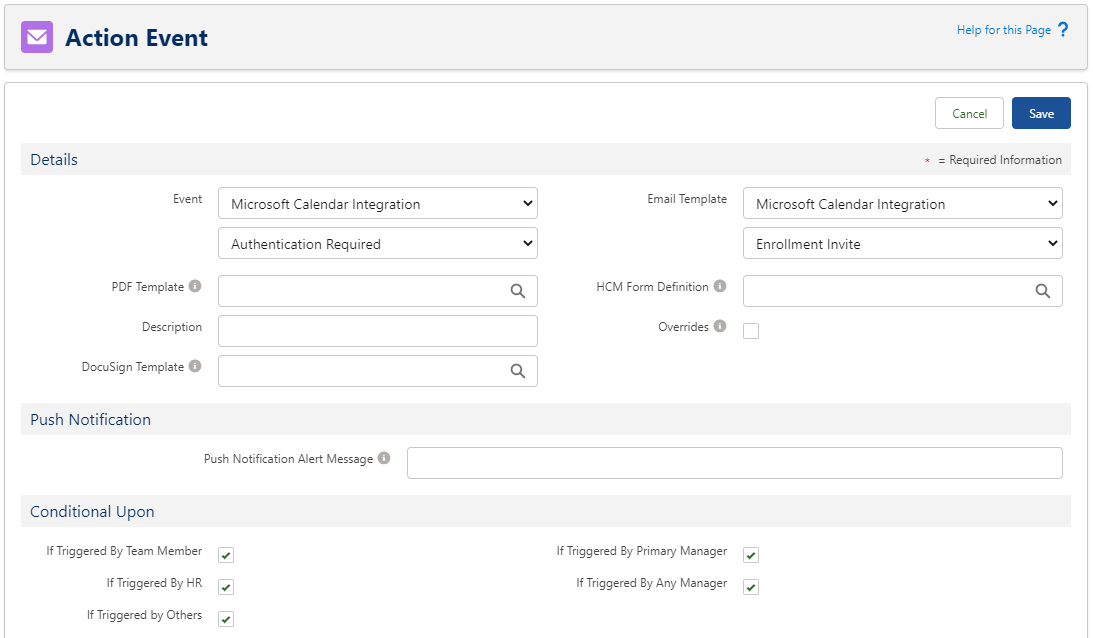
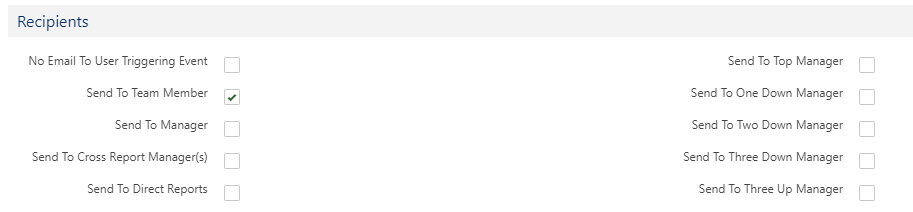
Set the fields as below.
-
Event: Microsoft Calendar Integration
-
Type select the event type:
-
Authentication Required: sends when you first configure the team member for calendar integration
-
Authentication Expired: sends when the team member's access to calendar integration expires
-
Authentication Requested Date: sends when the team member hasn't enrolled for calendar integration after a set period. Select the period to wait, in days or months
-
-
Email Template: Microsoft Calendar Integration (or use your own email template)
-
Type select the template to use:
-
Enrollment Invite: use for the Authentication Required enrollment invite and the Authentication Requested Date enrollment reminder (or use your own)
-
Re-Enrollment Invite: use for the Authentication Expired event (or use your own)
-
-
Conditional upon: select all options
-
Recipients: Send To Team Member
-
-
Select Save.
-
Repeat the process to create other email action events.
Tip We recommend you set up at least the Authentication Required and Authentication Expired events. Optionally configure the reminder email if your organization requires it.
You need to apply these actions to an Action Event Pattern that any team members use who will use the integration. See Linking action event patterns to policies.
Ensure you don't duplicate action events when using the Inherits From setting in your action event pattern. If your pattern inherits calendar enrollment action events from a parent pattern, be careful when configuring the same action event in the child pattern. Configuring the same action event in the child pattern can cause the action event email batch to fail. If using the Inherits From setting, configure your action event in either the parent or the child pattern, not both