Get troubleshooting tips for using Microsoft 365 with Sage.
Unsuccessful test when connecting to Azure
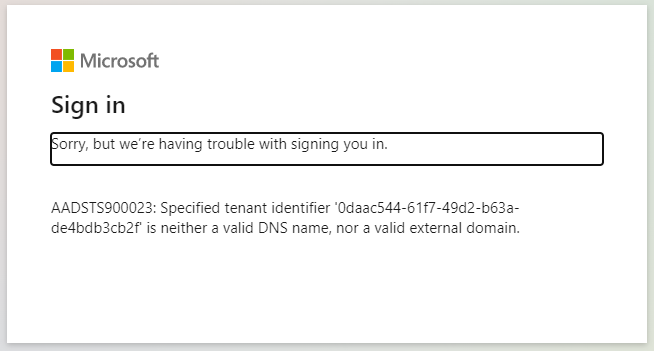
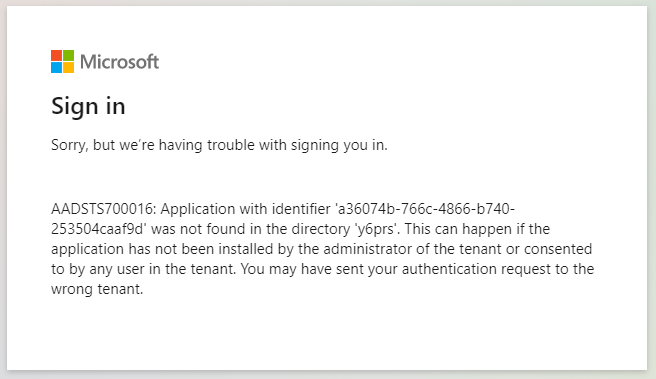
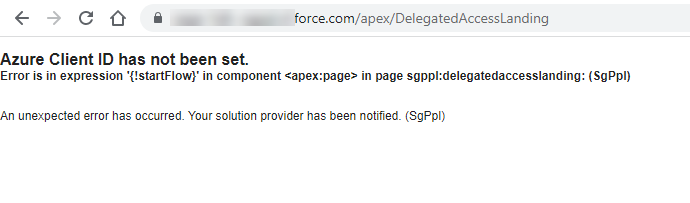
If you've tested the connection to Microsoft Azure but receive an error page, for example:
-
Sorry, but we're having trouble signing you in (AADSTS700016, AADSTS700023)
-
Azure client ID has not been set
What to check
-
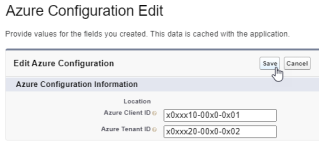
Check you've added the Tenant ID and Client ID correctly
-
Check you've added the client secret correctly
-
Check you're logged in to Salesforce as a user with the Federation ID field in the user record set to a valid Azure user email address

See Add Azure details to Sage People.
Users are unable to enroll (time off)
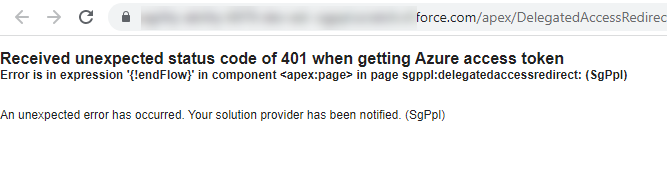
If users are unable to enroll for Calendar integration and receive an error page, for example:
-
Receive an unexpected status code of 401 when getting an Azure access token
What to check
-
Check you've added the Tenant ID and Client ID correctly
-
Check you've added the client secret correctly
-
Check whether the client secret for your Sage People Calendar Integration app in Azure has expired. We recommend you rotate the secret at least every 12 months
Error when enrolling
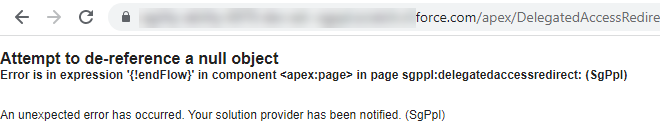
If the system asks users to grant permissions when enrolling but see an error, for example:
-
Attempt to de-reference a null object
What to check
-
Check you've got admin permissions granted to your Sage People Calendar Integration app in Azure
Users aren't receiving enrollment emails
What to check
-
Ensure you don't duplicate action events when using the Inherits From setting in your action event pattern. If your pattern inherits calendar enrollment action events from a parent pattern, be careful when configuring the same action event in the child pattern. Configuring the same action event in the child pattern can cause the action event email batch to fail. If using the Inherits From setting, configure your action event in either the parent or the child pattern, not both
See Create Action Events for user enrollment (time off only).
-
If you're using a sandbox org for testing and users aren't receiving enrollment emails, ensure you enabled email deliverability in the sandbox org:
-
Go to Setup, select Email Administration, then select Deliverability
-
Set the Access to Send Email access level to All email
Ensure that user email addresses for any sandbox users you want to enroll are valid. Salesforce appends ".invalid" or similar to user email addresses in sandbox orgs.
-
System isn't creating calendar events
What to check
-
Ensure you aren’t using an on-premises or hybrid Microsoft Exchange mailbox. We only support calendar integration for use with cloud mailboxes. See Before you begin
-
Check that the user has enrolled for Calendar integration (time off). See User enrollment (time off only)
-
Check the user's authentication status. The system stores this in the
fta__MS365_Calendar_Integration_Status__cfield on the Team Member record. See Create an enrollment report (time off only) -
If the user hasn't enrolled successfully, a Failure status message for the event shows. this is in Setup, Environment, Jobs, Apex Jobs

-
-
Check if the client secret for your Sage People Calendar Integration app in Azure has expired. We recommend you rotate the secret at least every 12 months. See Create a client secret
-
Check whether the user's access to the Sage People Calendar Integration app in Azure has expired or if you've revoked it
- Salesforce queues calendar events and the system may not be action them immediately. Check the status of Calendar events in your organization using the Setup, Environment, Jobs, Apex Jobs page. The possible statuses for Apex jobs are as follows:
- Queued: the job is awaiting execution
- Preparing: a user has invoked the
startmethod of the job. This status can last a few minutes, depending on the size of the batch of records - Processing: the system is processing the job
- Aborted: a user aborted the job
- Completed: the system completed the job without failures
- Failed: the job experienced a system failure
-
Check whether your Azure tenant is throttling events due to too many requests. If this occurs, the system won't create any calendar events for a set period of time. The system doesn't store or queue any failed events.
If this occurs, an error shows for the failed event in Setup, Environment, Jobs, Apex Jobs. For example, "Received unexpected status code of 429"
- Check Setup, Environment, Jobs, Apex Jobs for unexpected status codes or error messages. These are associated with the failed events. Contact your support representative.
For more information about the Apex job queue, see the Salesforce help article Monitoring the Apex Job Queue.
System doesn't create calendar events from the HR Manager portal
When approving absences using the HR Manager portal (instead of WX), the system doesn't create calendar events. This is unless you set both the Approval Date field and the Approved checkbox.
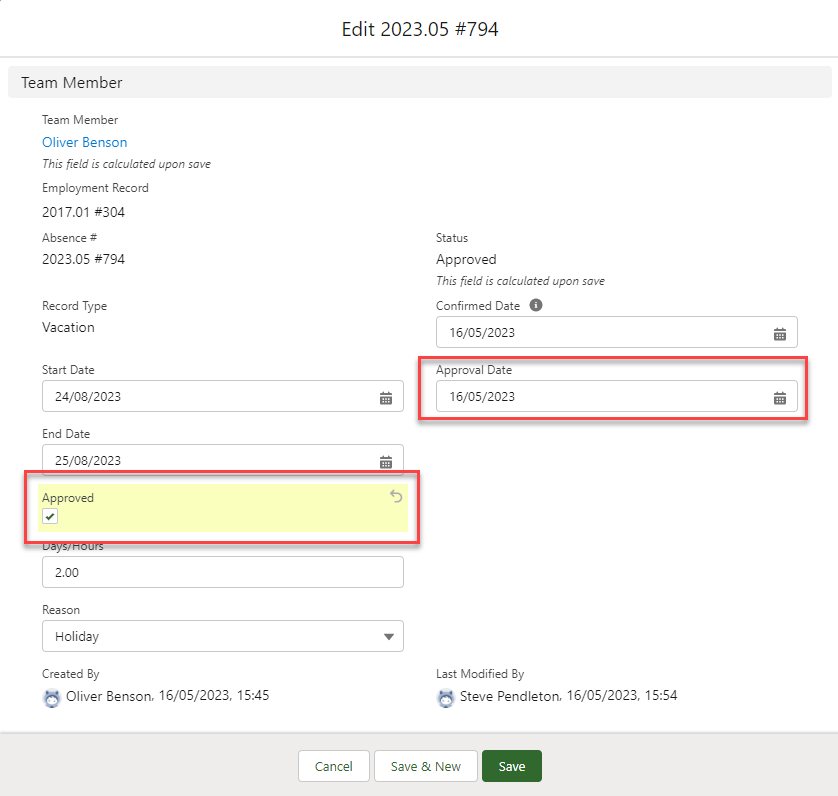
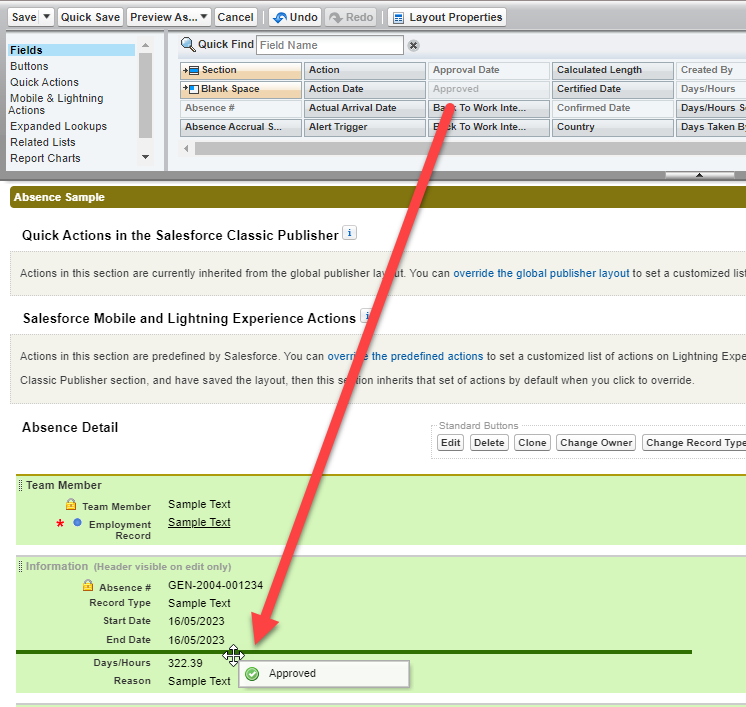
The Approved checkbox doesn't appear by default in the Absence page layout.
To add it:
-
Go to Setup > Object Manager.
-
Find the Absence object and select it.
-
Select Page Layouts.
-
Select the absence type you want to update.
-
Select the Approved field from the panel at the top of the page. Drag it to the Absence Detail layout.
-
Select Save.
-
Repeat for any other absence types you need to update.
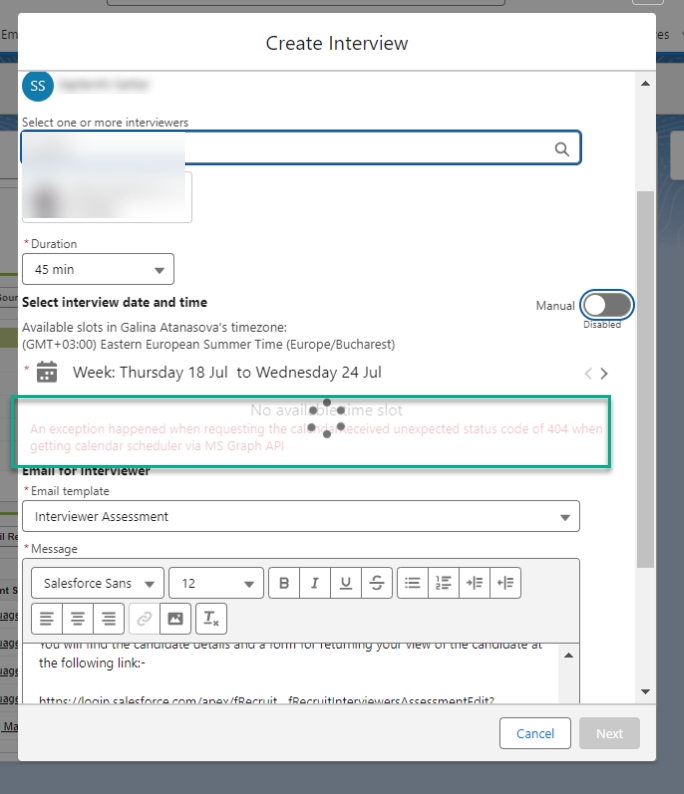
404 error when creating an interview calendar event (Recruit)
When creating a calendar event for a scheduled interview, you see the following error:
-
An exception happened when requesting the calendar: Received an unexpected status code of 404 when getting calendar scheduler via MS Graph API
Ensure you aren’t using an on-premises or hybrid Microsoft Exchange mailbox. We only support calendar integration for use with cloud mailboxes. See Before you begin
401 error when creating interview events (Recruit)
If users are unable to create Calendar events for scheduled interviews in Recruit and receive an error message, for example:
-
Received unexpected status code of 401 when getting Azure access token
What to check:
-
Check you've added the Tenant ID and Client ID correctly
-
Check whether the client secret for your Sage People Calendar Integration app in Azure has expired. We recommend you rotate the secret at least every 12 months
-
Check you've added the client secret correctly