Setting up Docusign to connect to Sage People uses standard Docusign functionality. Learn the essential steps to follow and for more information on Docusign, see https://support.docusign.com/en/home.
A step in this task requires you to upload a configuration file to Docusign. Ask your Customer Success team for the DocuSignToSFConfig2.xml file before starting these steps.
Resolution
-
Log in to the Docusign account you want to use with Sage People.
-
In the top navigation panel, select Admin.
-
Click Integrations and select Connect.
-
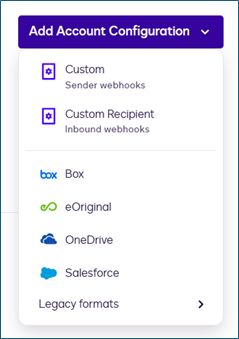
Select Add Account Configuration and select Salesforce.
-
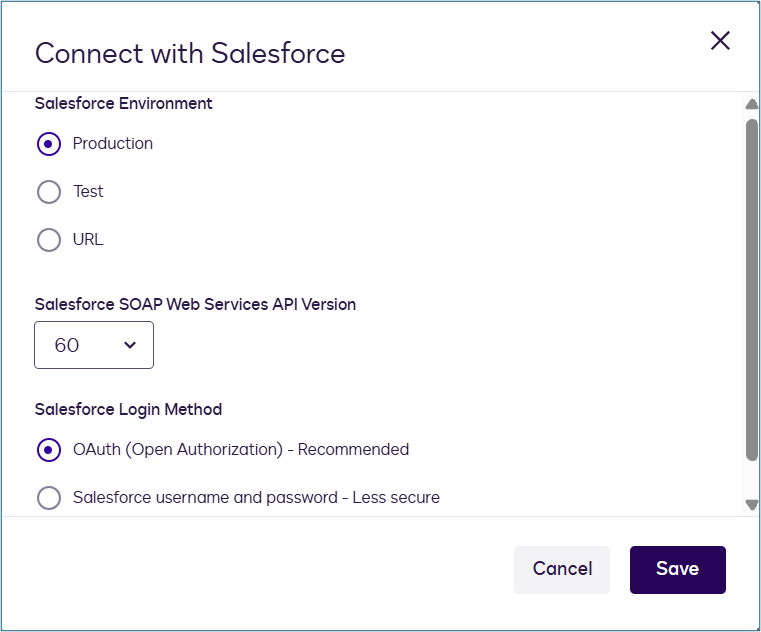
Select Production, the latest API version, and select OAuth.
-
Click Save.
-
Sign in to Sage People with your Production login credentials when the system prompts you to complete the connection. We recommend performing this with your Sage people Docusign user.
-
Select Edit next to your newly setup connection and check Enable Log.
-
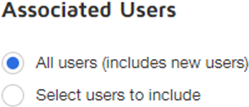
Select the users you want to integrate:
-
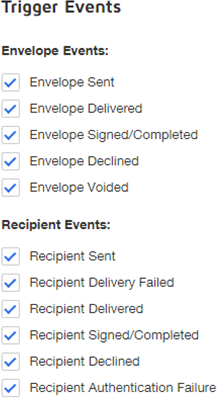
Under Trigger Events, select the checkboxes to enable messaging for the envelope and recipient events you want to see. Typically, select all for testing and initial operation:
-
Select Save.
-
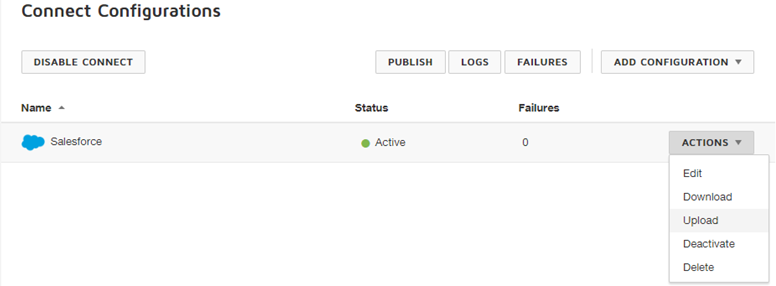
Select Actions then select Upload:
-
Find and select the file:
DocuSignToSFConfig2.xml
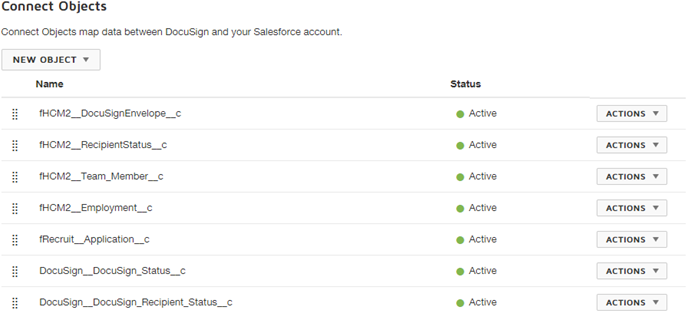
This file contains the default object-level mapping between Sage People and DocuSign.
-
Docusign asks you to confirm; select OK.
If you redisplay the Salesforce Connect configuration, Docusign displays the configuration details including the default mapping:
-
Select Go to Docusign:

-
In the top navigation bar, select Templates, then select New and New Template:

-
Enter a Template name and upload your document.
-
A template can contain multiple documents
-
Choose an Online Document lets you select a document from Box, Google Drive, Salesforce, or other online source
-
-
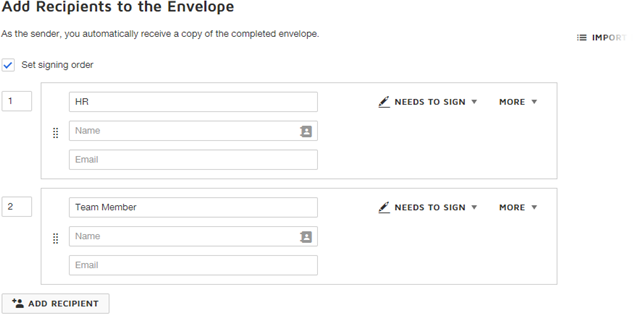
In the Add Recipients to the Envelope section, add Recipient Roles for each type of recipient. Indicate the routing order for the system to follow when distributing the document.
For example, for a form HR needs to complete and sign before sending to an employee, add HR and Employee roles. Set HR with Order number 1, Employee with Order number 2:
-
Leave Email and Name blank. Sage People supplies these on distribution
-
You can repeat roles in the Order sequence for forms needing completion and validation in multiple stages
-
-
In the Message section, customize the Subject line. Add a message you want to send with the document.
-
Select Next.
Docusign prompts you to tag the document.
-
Docusign displays the form for tagging. Drag and drop the tags from the left panel onto the form data fields. Do this for each of the recipients you've defined.
-
Make sure you tag all fields requiring completion. The system can't extract or map data from untagged fields
-
Create Custom Tags to tag fields the Standard tags don't cover
-
Set Custom Tag properties to validate input using one of the supplied masks. For example for zip code, or by specifying a regular expression (regex), for example for Social Security Number
-
You can set the recipient in Tag properties from your list of Recipient roles. This dictates who can complete or edit each field, important for the Signature fields
NoteWe also know DocuSign Tags as Tabs. Tags in the form within DocuSign become Tabs when they return to Sage People. The two terms are synonymous.
-
-
When you've finished tagging the form, select Save and Close.
-
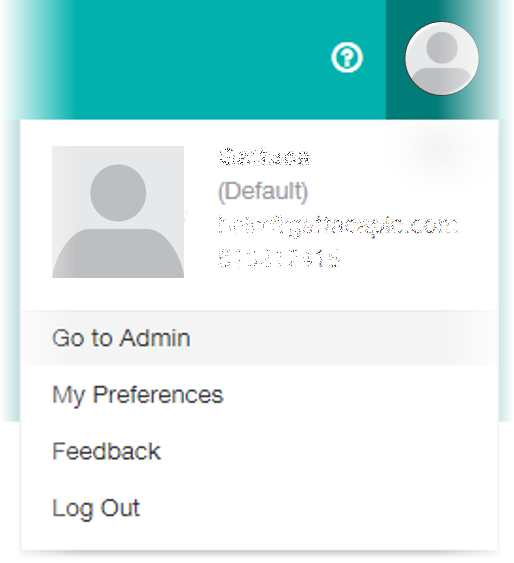
Select Go to Admin:
-
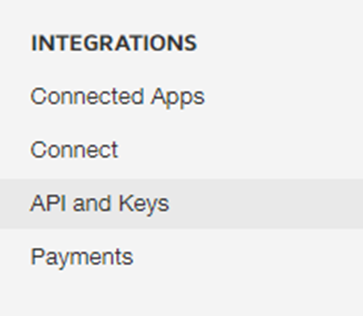
Select Integrations then select API and Keys:
-
Copy the API Account ID and save it to use when setting up Sage People HCM for Docusign.