Understand how to view your vacation and absence in Sage.
Resolution
In the menu, select the Time Off process to view your absence calendar. Your organization can name this differently.
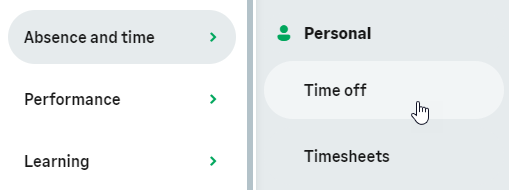
WX displays the time off page, open to your absence calendar.
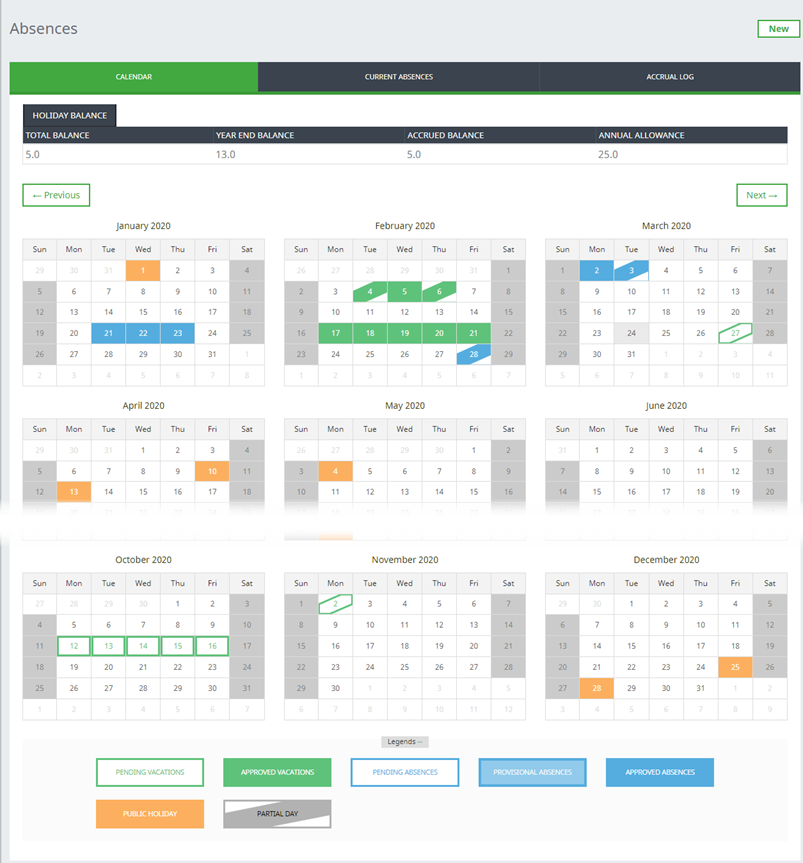
The view includes:
- Current and projected vacation balances. Your administrator can control which balances to display
- A full calendar for the current year
- Links to the previous and next years
-
Highlights for vacation and other types of absence, complete with a key.
The partial day legend is gray but partial days in the calendar follow the colors of the absence types
Highlights can also indicate public or national holidays set up for your organization
- All current absences display with duration, reason, and status, and a View Details link for each. Current Absences includes:
- Vacation from the last 12 months and booked for any time in the future
- Absence from the last six months and for 12 months in the future
You can select an absence to view a summary of its details. If your admin enabled it, you can also download the iCalendar file. If you need more information, such as when you requested the absence or when someone approved it, contact your HR team.
Balances
Above the calendar, balances display for vacation reasons you configured for your organization.
-
Values display in the unit set in the accrual pattern: days or hours
-
Labels for absence reasons (for example, "Holiday Balance") can be different for your organization
Your administrator can decide which vacation balances to display. If you have accruing balances for other absence reasons, such as sick leave, these don't display. To view all accrued balances, go to the Accrual Log.

To find out how much vacation you have left to use for new requests to the end of the year, check the Year End Balance. You can also see your available balance on the new time off dialog when you book an absence.
What do the balances mean?
| Balance | Description |
|---|---|
| Carry Over Balance | Balance of time off carried over from the previous accrual period, minus any time taken off to date. The system doesn't deduct pending and future requests from this balance. The system deducts days/hours used on the day they're used. |
| Time in Lieu |
Extra time off you're awarded, minus any time taken off to date. The system doesn't deduct pending and future requests from this balance. The system deducts days/hours used on the day they're used. Time in Lieu doesn't display if the balance is 0. Total Balance includes Time in Lieu balance (see below). |
| Total Balance |
The time off balance you've accrued to date in this accrual period, plus carry over, and time off in lieu. This is minus any time off taken to date. The system doesn't deduct pending and future requests from this balance. The system deducts days/hours used on the day they're used. Calculates as: (Current accrual + Carry over + Time in lieu) - Time taken off to date. |
| Year End Balance |
The balance you’ll have at the end of the accrual period. This is based on your accrual and any time off taken or requested to the end of the year. The system deducts pending or future requests from this balance when you book them. Calculates as: (Accrual to year end + Carry over + Time in lieu) - Time taken off and requested to year end. |
| Accrued Balance | The amount accrued to date since the last reset date, minus any time taken to date. The system doesn't deduct pending and future requests from this balance. The system deducts days/hours used on the day they're used. |
| Annual Allowance |
The total amount of time off you're entitled to for a full year, based on your accrual rate and full time equivalent (FTE Calculates by multiplying the accrual rate by the number of accrual periods in a year and the full time equivalent (FTE) value. |
| Allowance Pro Rata | The annual pro rata accrual balance only displays if the value is different from the value of Annual Allowance. The pro rata value can be different from your Annual Allowance if your start date is in the middle of an accrual period. Or if you've had an adjustment to your accrual rate. |

Time in Lieu and Carry Over display when you select it as configuration options only if values exist for the team member. In the example screenshot above, the Team Member was awarded Time in Lieu, but has no Carry Over. Allowance Pro Rata displays when you select it as a configuration option only if the value is different from Annual Allowance.
Accrual log
The Accrual Log tab typically displays, but your administrator can choose not to display it in WX. The accrual log displays detailed information about how your entitlement to vacation type absence increases during a period. It also shows how the system deducts the time off you take from your balance. Viewing your accrual log can help you understand your entitlement. For more information, see Viewing your Absence Accrual Log.