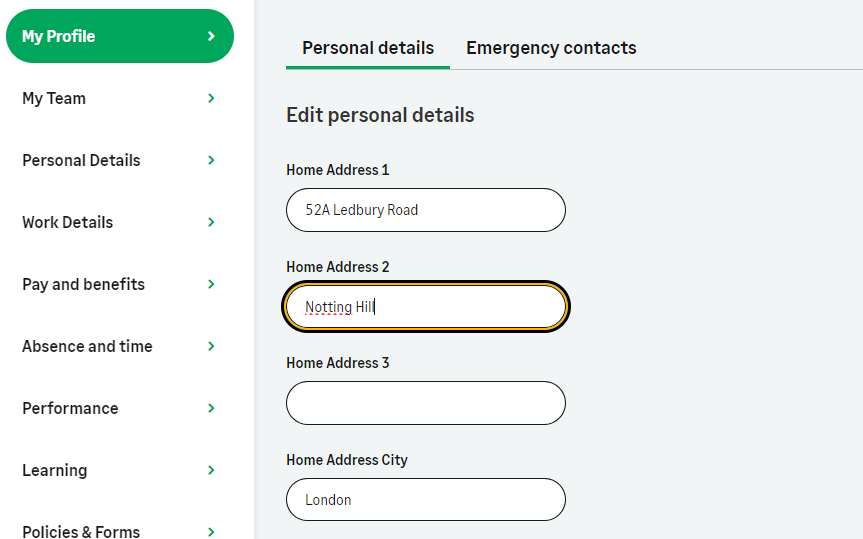
We've updated the WX self-service with an improved navigation experience and a modern, responsive layout. We designed it to work seamlessly on desktop, mobile, and tablet.
When you enable this update for your organization, you’ll notice some differences between the new and old layout.
The new design implements a refreshed menu, header, and footer, and homepage. It has a new people search function that lets you search team members across your organization. The design uses a responsive left navigation menu, providing easy access to all WX features and team views.
We've introduced a new profile view when viewing other team members. Managers also have access to a My Team view to see their management processes and direct reports quickly.
The updated WX homepage presents your organization's internal communications, community updates and summaries, and new homepage components. It does this in a modern, responsive layout.
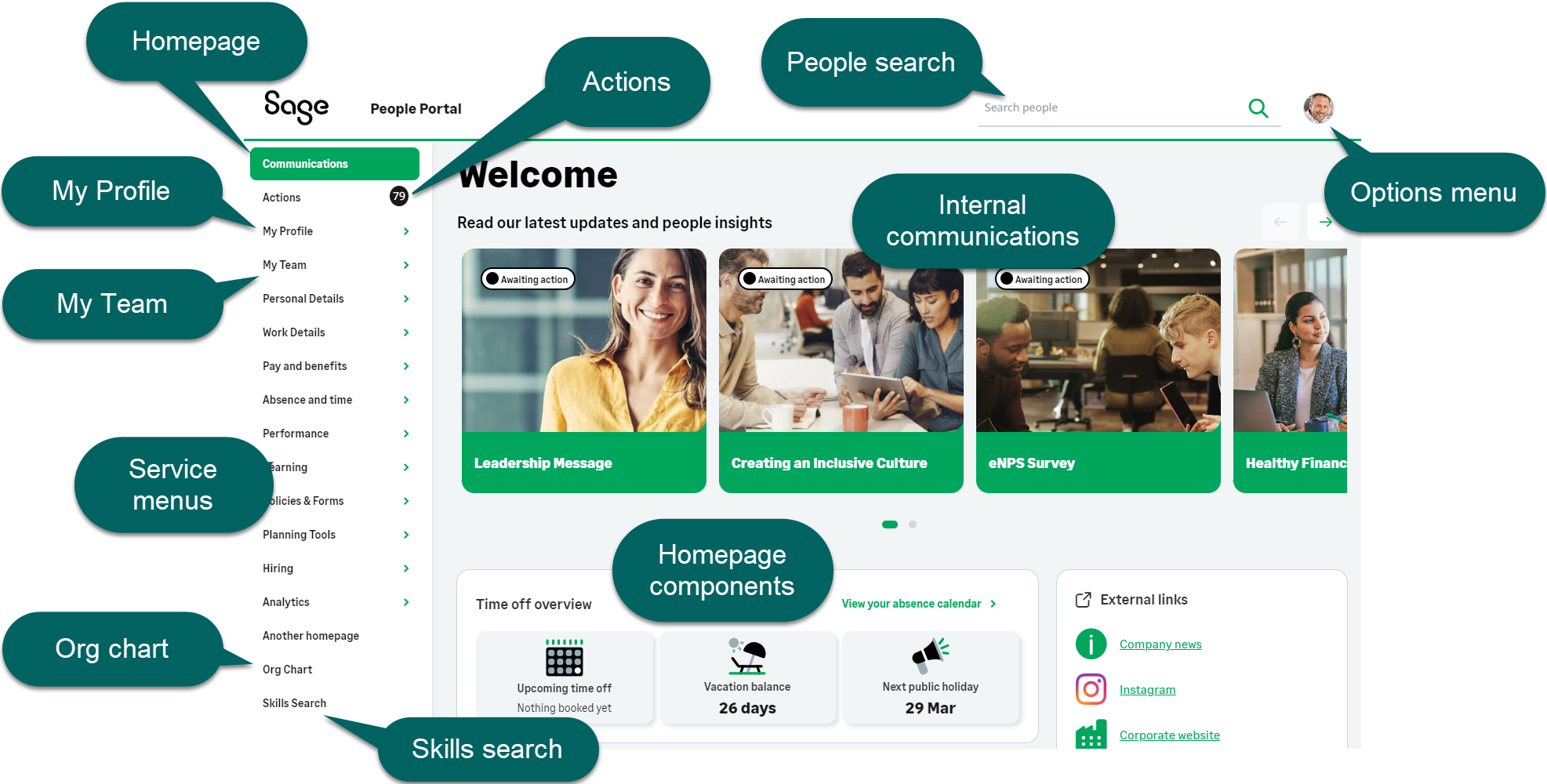
The new WX supports the existing service and process structure. You can enable it without making further changes in your organization.
For more information about using the WX portal, see Using the self-service portal.
Updated homepage
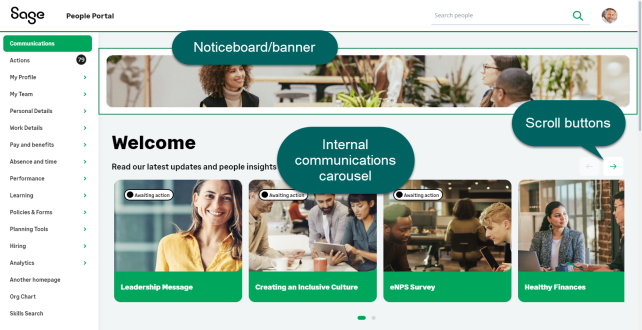
We've added a new-look homepage design to organize your internal communications and summaries in a modern, responsive layout. New homepage components include a time off overview, and a panel to display external links.
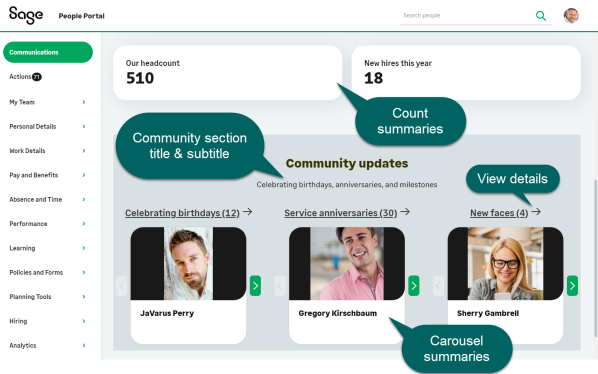
The new homepage groups all internal communications into a new carousel section at the top of the page. Below this, new homepage components include a time off summary and an external links component. A community updates section groups all carousel summary processes into a dedicated area. Count summaries display above the carousel summary components.
Updated homepage: carousel
Updated homepage: summaries
My Profile page
We designed the My Profile page to let team members access their personal information quickly, and to switch between their processes. They can easily view, add, or update information. Designate one of your services as a Profile service, and add supported processes. Processes appear in the secondary side menu for the profile service. the system shows them as a tabbed menu on the team member's profile page, along with the team member's photo and job title.
If you have more than one service set as a profile, they system only uses the first ordered profile service page as a profile. Further profile services pages will appear as standard services.
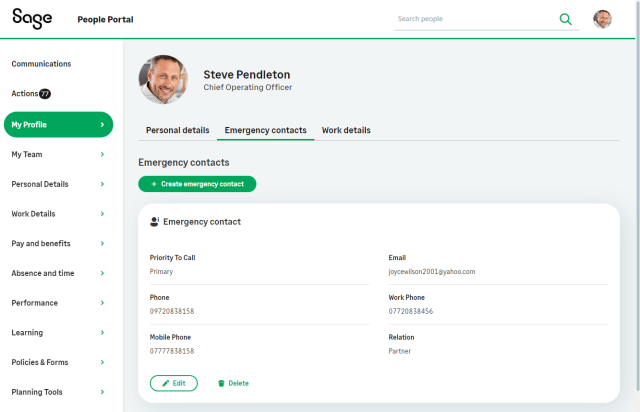
We currently support the following processes for use with a profile service. We'll aupport more processes in future releases.
-
Personal Details
-
Emergency Contacts
-
Work Details
-
Work history/experience
-
Education history
-
Dependants
-
Passports
We've also updaed these processes to enable inline editing within the page without opening a secondary edit dialog. Select Edit details to make changes.