Learn about your other configuration options for partial days in Sage.
If your organization calculates absences in days, you can request a configuration package from your Customer Success Manager. Or add a configuration to enable partial day indicators. These show if a partial day absence falls on the first or last part of the working day. When the configuration is in place, partial day absences display as triangles in the absence calendar in WX:
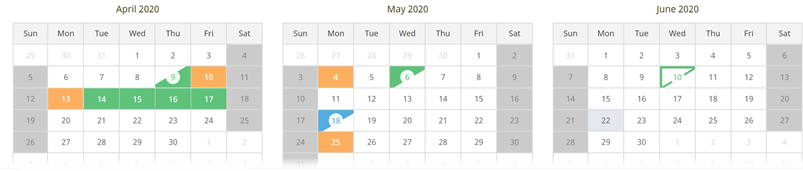
You can apply partial day absences to an absence applied to a single day. Or to the first or last days of a more extended period. The additional configuration consists of new custom fields, a formula field, optional validation rule, and a flow. You need to:
-
Create two picklist fields in the Absence object:
-
A field to let users select morning or afternoon for the first day of an absence. Use this field when applying a partial day to an absence that starts and ends on the same day
-
A field to let users select morning or afternoon d for the last day of an absence. Use this field when applying a partial day to an absence that doesn't start and end on the same day
-
Add the fields to Field Sets to display the fields in the WX self-service portal
-
- Create a formula field in the Absence object for calculating the correct numerical value of partial days. The WX user selects this
- Create an optional validation rule for partial day absences on a single day. The validation rule displays an error if you use the last day picklist for a partial day absence starting and ending on the same day
- Create a Salesforce Flow. The flow calculates the duration of the absence and applies the partial day indicators to the first and last day of the absence. This is according to the selected picklist values
Create fields for indicating the part of the day
To enable users to apply partial days to single day absences and to the first or last days of longer absences, create two fields. Do this on the Absence object for indicating the morning or afternoon of the day.
- Go to Setup and select the Object Manager tab.
- Select the label for the Absence object.
-
Select Fields & Relationships, and select New.
Sage People displays the New Custom Field page.
-
In the Data Type section, select Picklist, then select Next.
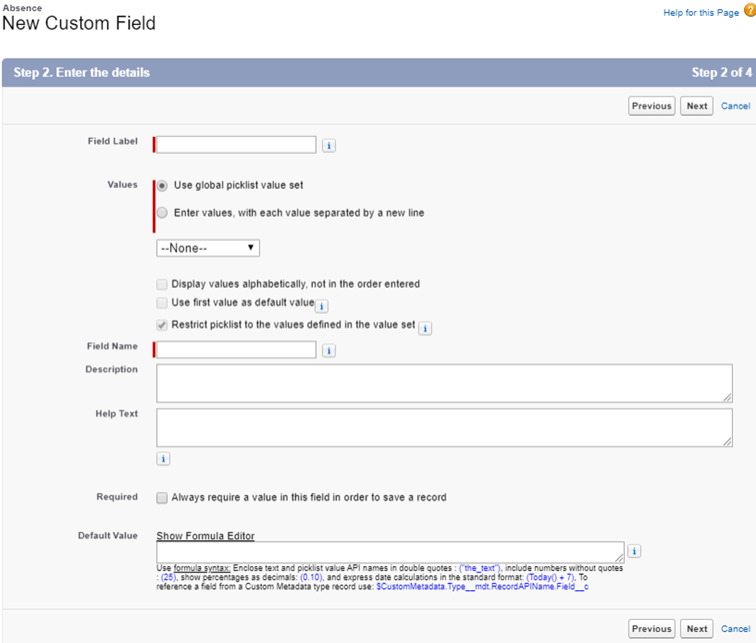
Sage People displays Step 2: Enter the details.
-
Complete the fields as follows:
Field What to enter Field Label Enter a label for the field. For example:
First Day
Values Select Enter values, with each value separated by a new line. Then enter the values for the picklist. For example:
AMPM
Select the Restrict picklist to the values defined in the value set checkbox. Leave the other checkboxes unchecked.
Field Name Automatically fills in from the Field Label. Description Optionally enter a description for the field. For example:
Field to indicate if the first day of an absence is a partial day.
Help Text Optionally enter a help text for the field. For example:
Select a value to indicate if the first day of the absence falls on the morning or afternoon of the day.
Required Checkbox. Leave unchecked. Default Value Leave empty. -
Select Next.
Sage People displays Step 3: Establish field-level security.
-
Specify the field's access settings for each profile and select Next.
Sage People displays Step 4: Add to page layouts.
-
Choose the page layouts in the HR Manager portal where you want to display the field as an editable field. The system adds the field as the last field in the first two-column section on the page layout. For long text area fields, the system adds the field to the end of the first one-column section on the page layout. For user custom fields, the system adds the field automatically to the bottom of the user detail page.
- Select Save & New.
- Repeat steps 3 to 7 to create a picklist for the last day of the absence. Suggested field label: Last Day. When you have completed Step 4: Add to page layouts, select Save.
- On the Absence object page, select Field Sets.
- Select the Field Sets controlling absence fields that display to Team Members and Managers in WX. Add the two picklist fields you created to the field sets.
Create a formula field for calculating the partial days
- Go to Setup and select the Object Manager tab.
- Select the label for the Absence object.
-
Select Fields & Relationships, and select New.
Sage People displays the New Custom Field page.
-
In the Data Type section, select Formula, then select Next.
Sage People displays Step 2: Choose the output type.
-
Complete the fields as below.
Field What to enter Field Label Enter a label for the field. For example:
Half Day Reduction
Field Name Automatically fills in from the Field Label. Formula Return Type Select Number.
Options Select the Decimal Places picklist and choose 1.
-
Select Next.
Sage People displays Step 3: Enter Formula.
-
In the large text field, enter the following formula, replacing:
-
first-day-field-nameandlast-day-field-namewith the Field Names of the picklist fields you created -
AMandPMwith the picklist values you used to represent morning and afternoon
CopyIF(ISPICKVAL(first-day-field-name__c, 'AM') && fHCM2__Start_Date__c = fHCM2__End_Date__c , 0.5,
IF (ISPICKVAL(first-day-field-name__c, 'PM') && fHCM2__Start_Date__c = fHCM2__End_Date__c , 0.5,
IF(ISPICKVAL(last-day-field-name__c, 'AM' ) && fHCM2__Start_Date__c = fHCM2__End_Date__c , 0.5,
IF( ISPICKVAL(last-day-field-name__c, 'PM') && fHCM2__Start_Date__c = fHCM2__End_Date__c , 0.5,
IF(ISPICKVAL(first-day-field-name__c, 'AM') && ISBLANK(TEXT(last-day-field-name__c)) && fHCM2__Start_Date__c < fHCM2__End_Date__c , 0.5,
IF(ISPICKVAL(first-day-field-name__c, 'PM') && ISBLANK(TEXT(last-day-field-name__c)) && fHCM2__Start_Date__c < fHCM2__End_Date__c , 0.5,
IF(ISBLANK(TEXT(first-day-field-name__c)) && ISPICKVAL(last-day-field-name__c, 'AM') && fHCM2__Start_Date__c < fHCM2__End_Date__c , 0.5,
IF(ISBLANK(TEXT(first-day-field-name__c)) && ISPICKVAL(last-day-field-name__c, 'PM') && fHCM2__Start_Date__c < fHCM2__End_Date__c , 0.5,
IF(ISPICKVAL(first-day-field-name__c, 'PM') && ISPICKVAL(last-day-field-name__c, 'AM') && fHCM2__Start_Date__c < fHCM2__End_Date__c , 1,
IF(ISPICKVAL(first-day-field-name__c, 'AM') && ISPICKVAL(last-day-field-name__c, 'AM') && fHCM2__Start_Date__c < fHCM2__End_Date__c , 1,
IF(ISPICKVAL(first-day-field-name__c, 'AM') && ISPICKVAL(last-day-field-name__c, 'PM') && fHCM2__Start_Date__c < fHCM2__End_Date__c , 1,
IF(ISPICKVAL(first-day-field-name__c, 'PM') && ISPICKVAL(last-day-field-name__c, 'PM') && fHCM2__Start_Date__c < fHCM2__End_Date__c , 1,
0
)))))))))))) -
- In the Blank Field Handling section, select Treat blank fields as blanks.
-
Select Next.
Sage People displays Step 4: Establish field-level security.
-
Specify the field's access settings for each profile and select Next.
Sage People displays Step 5: Add to page layouts.
-
Choose the page layouts you want to display the field as an editable field. The system adds the field as the last field in the first two-column section on the page layout. For long text area fields, the system adds the field to the end of the first one-column section on the page layout. For user custom fields, the system adds the field automatically to the bottom of the user detail page.
- Select Save.
Create a validation rule
Create a validation rule to display an error message when the system uses the last day picklist. This is for partial day absences starting and ending on the same day. Sage People recommends using the first day picklist for these absences.
- Go to Setup and select the Object Manager tab.
- Select the label for the Absence object.
- Select Validation Rules, and select New.
-
On the Validation Rule Edit page, complete the details as below.
Field What to enter Rule Name Enter a name for the rule. For example:
Last DayActive Checkbox.
Defaults to checked, don't uncheck.
Description Optionally enter a description of the rule. For example:
Displays an error if a user selects an option in the Last Day picklist for a single day partial absence.
-
In the Error Condition Formula section, enter the following formula. Replace
last-day-field-namewith the Field Name of your picklist field for the last day of the absence. ThenAMandPMwith the values in your last day picklist:CopyfHCM2__Start_Date__c = fHCM2__End_Date__c &&ISPICKVAL(last-day-field-name__c, "AM") ||
fHCM2__Start_Date__c = fHCM2__End_Date__c && ISPICKVAL(last-day-field-name__c, "PM") -
Complete the fields in the Error Message section as below.
Field Description Error Message Enter an error message to display when a Team Member selects a value in the Last Day picklist for a single day absence.
Error Location Select the location where the error message displays in the HR Manager portal.
Doesn't apply to WX.
-
Select Save.
Create a Salesforce Flow
Create a Salesforce Flow for calculating the absence duration and applying the partial day indicators.
-
Go to Setup and in Quick Find enter Flows.
-
On the Flows page, select New Flow.
Sage People displays the Flow Builder.
-
On the New Flow window, select Record-Triggered Flow. Then select Create.
-
On the Configure Start window, complete the fields as below.
Field Description Object Picklist. The object hosting the records used to trigger the flow.
Select Absence fHMC2__Absence__c
Configure Trigger Radio buttons for selecting the event that triggers the flow.
Select A record is created or updated.
-
In the Set Entry Conditions section, select the Condition Requirements picklist. Choose Any Condition Is Met (OR).
Sage People displays fields for the field to check, the operator, and value.
-
Complete the fields as below.
Field Description Field Use the search to find and select the field you created to represent the first day of the absence. For example:
First_Day__c.
Operator Select the picklist and choose Is Null.
Value Select the field and choose $GlobalConstant.False. -
Select + Add Condition and add a second field as below.
Field Description Field Use the search to find and select the field you created to represent the last day of the absence. For example:
Last_Day__c.
Operator Select the picklist and choose Is Null.
Value Select the field and choose $GlobalConstant.False. - Set When to Run the Flow for Updated Records to Every time a record is updated and meets the condition requirements.
-
Leave the Optimize the Flow for: value at the default option Actions and Related Records.
-
Select Done.
Sage People displays the Flow on the Flow Builder canvas.
-
Select + between the Start and End elements. Select the Update Triggering Record element.
Sage People displays the New Update Records window.
-
Enter a Label for the update. For example: Partial Day Update. The API name completes automatically based on the Label.
-
For How to Find Records to Update and Set Their Values, select Use the absence record that triggered the flow.
-
In the Set Filter Conditions section, make sure you select None-Always Update Record.
-
In the Set Field Values for the Absence Record section, enter details as follows:
-
Select Field and start typing Days, and select fHCM2__Days__c
-
Select the Value field and then select New Resource
-
On the New Resource screen, select the Resource Type picklist and choose Formula
-
Complete the fields as below.
Field Description Resource Type Picklist
Completes automatically based on the previous step.
API Name The unique name of the resource in your org.
Letters, numbers, and underscores only.
Description Optional description for the resource.
For example:
Calculates the length of the absence using the Calculated Length field and the partial day formula.
Data Type Picklist.
Select Number.
Decimal Places Enter 1. Formula Space to enter a formula and Insert a resource picklist.
Enter the following formula, replacing
your-formula-fieldwith the Field Name of the Formula field you created. Use the Insert a resource picklist to ensure they're correct:CopyIF( {!$Record.your-formula-field__c} > 0, {!$Record.fta__Calculated_Length__c} - {!$Record.your-formula-field__c} , {!$Record.fta__Calculated_Length__c} ) -
Select Done.
-
Back on the New Update Records screen, select Add Field.
-
Select Field and start typing Partial. Then select fta__Partial_Days_Options__c.
-
Select the Value field and then select New Resource.
-
On the New Resource screen, select the Resource Type picklist and choose Formula.
-
Complete the fields as below.
Field Description Resource Type Picklist
Completes automatically based on the previous step.
API Name The unique name of the resource in your org.
Letters, numbers, and underscores only.
Description Optional description for the resource.
For example:
Applies absence duration codes based on partial day picklist selections. This is so the system can display the correct symbols in the absence calendar.
Data Type Picklist.
Select Text.
Formula Space to enter a formula and Insert a resource picklist.
Enter the following formula, replacing
first-day-field-nameandlast-day-field-namewith the Field Names of the Picklist fields you created. Use the Insert a resource picklist to ensure they're correct. If necessary, also replaceAMandPMwith the picklist options you're using.CopyIF(ISBLANK(TEXT({!$Record.first-day-field-name__c})) && ISPICKVAL({!$Record.last-day-field-name__c}, 'AM'), "01FFS",
IF(ISBLANK(TEXT({!$Record.first-day-field-name__c})) && ISPICKVAL({!$Record.last-day-field-name__c}, 'PM'), "01FFE",
IF(ISPICKVAL({!$Record.first-day-field-name__c}, 'AM') && ISPICKVAL({!$Record.last-day-field-name__c}, 'AM'), "01SFS",
IF(ISPICKVAL({!$Record.first-day-field-name__c}, 'PM') && ISPICKVAL({!$Record.last-day-field-name__c}, 'AM'), "01EFS",
IF(ISPICKVAL({!$Record.first-day-field-name__c}, 'PM') && ISPICKVAL({!$Record.last-day-field-name__c}, 'PM'), "01EFE",
IF(ISPICKVAL({!$Record.first-day-field-name__c}, 'AM') && ISPICKVAL({!$Record.last-day-field-name__c}, 'PM'), "01SFE",
IF(ISPICKVAL({!$Record.first-day-field-name__c}, 'PM') && ISBLANK(TEXT({!$Record.last-day-field-name__c})), "01EFF",
IF(ISPICKVAL({!$Record.first-day-field-name__c}, 'AM') && ISBLANK(TEXT({!$Record.last-day-field-name__c})), "01SFF",
"")))))))) -
Select Done.
-
Select Done to close the New Update Records screen.
-
-
On the Flow Builder screen, select Save.
-
To check your work, select Debug. Debug highlights if you've made any obvious errors in field names or formula syntax.
If your flow has no errors, Sage People displays the Debug flow window.
-
Select a record you want to use in the debug run, and then select Run. When the run completes, you can view details of the run.
-
When you're satisfied, select Activate.