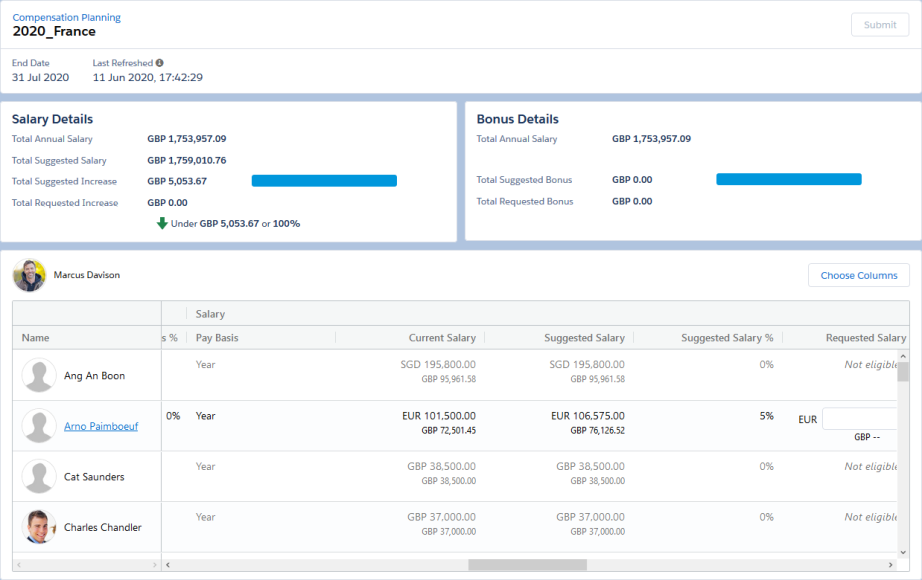
When you open a Plan in WX Sage People displays the initial view of the Plan you selected:
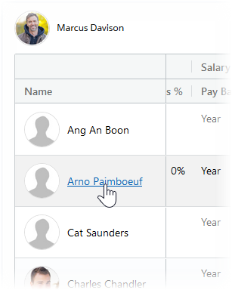
If a direct report is a Planner for their own team, the Plan indicates the status of the subsidiary, child Plan and the direct report name is selectable. To display the Child Plan, select the direct report name:
The Plan displays totals at the top of the Plan with Planner fields beneath.
Total fields
| Field | Description |
|---|---|
| Salary Details | Displayed above the Plan table for Salary Plans.
Information about the annual budget for your team, displayed in the reporting currency for your organization.
|
| Bonus Details | Displayed above the Plan table for Bonus Plans.
Information about the bonus budget for your team, displayed in the reporting currency for your organization.
|
Planner fields
The Plan includes default data columns and any columns added when setting up the Plan. Scroll to the right to see all fields. Columns are displayed in sections:
-
Team
Displayed when your Plan includes child Plans for other teams.
-
Additional Information
Displayed when your Plan has been set up with extra, non-default fields.
-
Salary
Displayed for Salary Plans.
-
Bonus
Displayed for Bonus Plans.
As a Planner you can modify your view of the Plan, for example by choosing a subset of the default fields to display on your Plan, enabling you to focus on just the data you need for your team. You can also move columns left or right using drag and drop, pin columns in a non-scrolling area, and filter on column content. The full column display in the default order is restored each time you close and re-open a Plan, or refresh the page in your browser.
The default Planner fields are:
| Field | What to enter |
|---|---|
| Name | Team Member name. |
| Team fields Displayed for child Plans. Team salary fields are only displayed for Salary Plans. Team Bonus fields are only displayed for Bonus Plans. |
|
| Status | Indicates if the child Plan is in progress, submitted, or approved. |
| Annual Team Salary |
Total current salary for the team covered by the child Plan. The sum of values for the child Plan and any subsidiary Plans within it. Annual Team Salary includes salaries for all Team Members in the team - those who are eligible for review and those who are not. |
| Suggested Team Salary | Total salary for the team covered by the child Plan after applying suggested increases. Calculated using the Salary Projection Formula for the Plan. |
| Requested Team Salary | Total salary requested for the team covered by the child Plan. The sum of all Requested Salary values entered for Team Members. Calculated dynamically using figures entered by the Planner. |
| Requested Team % | Percentage increase above Annual Team Salary represented by Requested Team Salary. Calculated dynamically using figures entered by the Planner. |
| Balance % | Percentage of Suggested Team Salary left after subtracting Requested Team Salary. |
| Balance | Currency value of the difference between Suggested Team Salary and Requested Team Salary. |
| Suggested Team Bonus | Total bonus for the team covered by the child Plan. Calculated using the Bonus Projection formula. |
| Requested Team Bonus | Total bonus requested for the team covered by the child Plan . The sum of all Requested Bonus values entered for Team Members. Calculated dynamically using figures entered by the Planner. |
| Requested Team Bonus % |
Percentage of Suggested Team Bonus represented by Requested Team Bonus. Calculated dynamically using figures you enter. If Suggested Team Bonus is 0 (zero) Requested Team Bonus % also displays 0 (zero), regardless of the value of Requested Team Bonus. |
| Additional Information fields Additional columns selected in Plan setup, displayed between Team fields and Salary fields |
|
| Salary fields Displayed for Salary Plans |
|
| Pay Basis | Time period over which Current Salary is paid. For example, Year or Hour. |
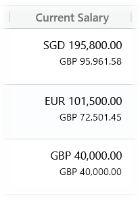
| Current Salary |
Current salary amount, displayed in local and reporting currencies.
Displayed for all Team Members. |
| Suggested Salary | Suggested salary amount calculated using the Salary Projection formula. Displayed for all Team Members. |
| Suggested Salary % | Suggested salary increase as a percentage of the Team Member's current salary. Calculated using the Salary Projection formula. Displayed for all Team Members. |
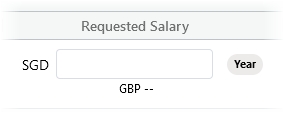
| Requested Salary |
Salary amount requested by the Planner. Open for entry by the Planner if the Team Member is eligible for a salary award. Automatically calculated if the Planner enters a Requested Salary %. Includes local currency and pay basis indicators and when the Planner enters a value, the reporting currency equivalent:
Non-eligible Team Members display Not eligible. |
| Requested Salary % |
Requested salary as a percentage of the Team Member's current salary. Open for entry by the Planner if the Team Member is eligible for a salary award. Automatically calculated if the Planner enters a Requested Salary. Non-eligible Team Members display Not eligible. |
| Select Reason | Displayed if the Plan is set up to enable Planners to edit the Salary Reason. Displays as a picklist containing all active reasons. |
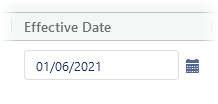
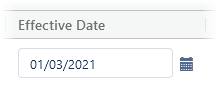
| Effective Date |
Date when salary awards take effect. Displayed if the Plan is set up to enable Planners to edit the Effective Date - Planners can select the calendar and choose the date the award is to take effect.
If left blank for a Team Member the Effective Date must be set through the HR Manager portal. |
| Salary Comment |
Link to view or add comments. Typically used to add justification notes for significant variance, a changed Salary Reason, or a changed Effective Date. Displayed for all Team Members who are eligible for a salary award. Planners can select the Comment icon to add a note about a Plan entry. The Comment icon displays the number of Salary Comments related to this Plan for the Team Member. |
| Bonus fields Displayed for Bonus Plans |
|
| Months Since Last Paid Bonus |
Number of months from the Team Member's most recent bonus award. Displayed for all Team Members who have received a bonus award in the past. |
| Last Paid Bonus |
Amount of the Team Member's most recent bonus award. Displayed for all Team Members who have received a bonus award in the past. |
| Salary | Salary amount used as the base for calculating the requested bonus award. Calculated using the Base Salary formula for Bonus Calculation. Defaults to the Annual Salary. |
| Suggested Bonus | Suggested bonus amount calculated by the Bonus Projection Formula. |
| Suggested Bonus % |
Percentage of Salary represented by Suggested Bonus. Calculated by the Bonus Projection Formula. Displayed for all Team Members who are eligible for a bonus award. |
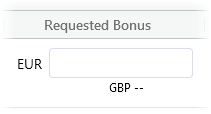
| Requested Bonus |
Bonus amount requested by the Planner. Open for entry by the Planner if the Team Member is eligible for a bonus award. Automatically calculated if the Planner enters a Requested Bonus %. Includes a local currency indicator and when the Planner enters a value, the reporting currency equivalent:
Non-eligible Team Members display Not eligible. |
| Requested Bonus % |
Requested bonus as a percentage of Salary. Open for entry by the Planner if the Team Member is eligible for a bonus award. Automatically calculated if the Planner enters a Requested Bonus. Non-eligible Team Members display Not eligible. |
| Effective Date |
Date when bonus awards take effect. Displayed if the Plan is set up to enable Planners to edit the Effective Date - Planners can select the calendar and choose the date the award is to take effect.
If left blank for a Team Member the Effective Date must be set through the HR Manager portal. |
| Bonus Comment |
Link to view or add comments. Typically used to add justification notes for significant variance, or a changed Effective Date. Displayed for all Team Members who are eligible for a bonus award. Planners can select the Comment icon to add a note about a Plan entry. The Comment icon displays the number of Bonus Comments related to this Plan for the Team Member. |