You can:
- Choose a subset of the Planner fields to display in your Plan using the Choose Columns dialog or by using quick hide.
- Resize column widths.
- Move columns left or right.
- Pin columns so they form part of the non-scrolling area next to the Name column.
- Filter on column content for the Salary Requested and Bonus Requested columns.
Any changes you make to hide, display, move, or filter columns are retained until you close the Plan or refresh the page - when you re-open the Plan or page refresh has completed, the Plan is displayed without modification.
To choose the columns to display:
-
Select Choose Columns:
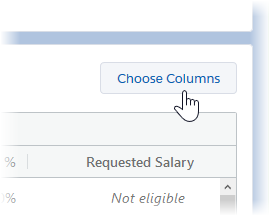
Compensation Planning displays the Choose Columns dialog:
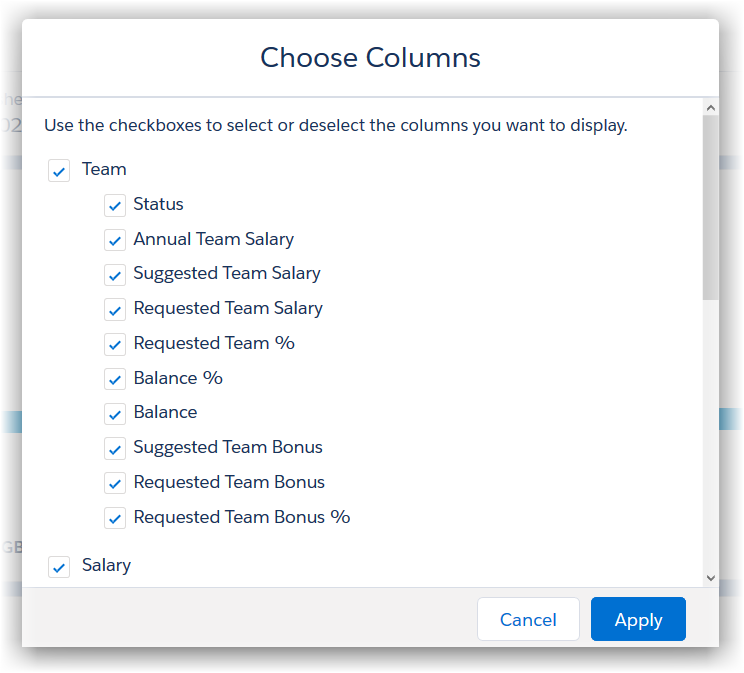
- By default, all columns are displayed. Deselect those columns you want to hide. You can re-select any you hide in error. If you close and re-open the Plan, all default columns are restored to display.
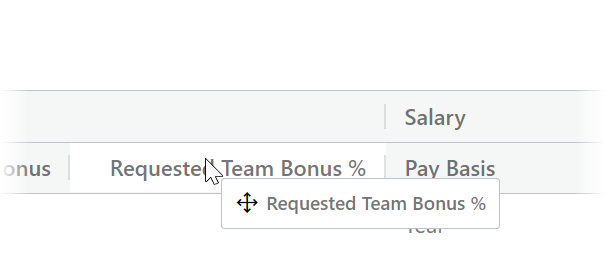
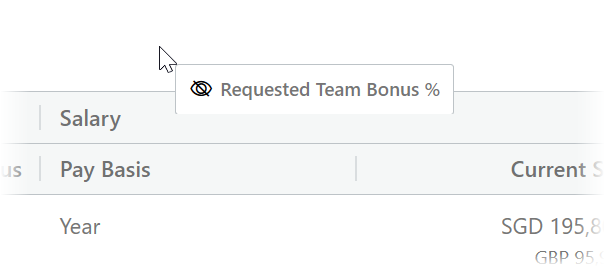
You can also quickly hide a column or complete section by selecting the column or section heading, dragging and dropping it in the space immediately above the table:
To resize a column:
-
Select the column boundary in the heading row:
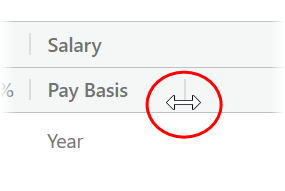
- Drag left or right.
To move a single column:
-
Select the column heading:
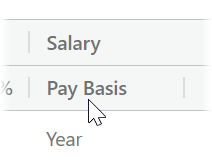
- Drag and drop in the new location.
Dragging a column from one section to another, for example Pay Basis from Salary to Team, replicates the section heading:

To move all columns in a section, for example move the Bonus section to the left of the Salary section:
-
Select the section heading:
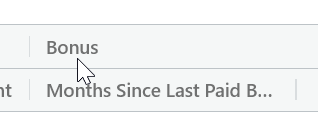
- Keep the cursor in the table heading area while you drag the section heading to its new location.
-
Drop the section in place:
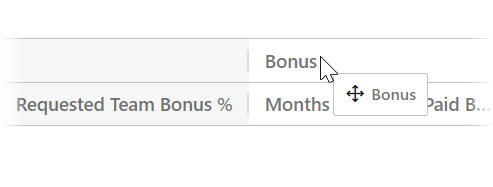
To pin columns in a non-scrolling area:
-
Select the column heading for the column you want to pin:
-
Drag the column heading left and drop it immediately left of the Name column boundary:
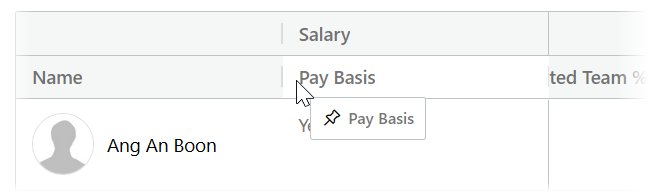
The newly pinned column includes its section heading.
You can pin multiple columns in the non-scrolling area and move pinned columns left or right within it.
To filter the Plan based on the values in the columns for Requested Salary, Requested Salary %, Requested Bonus, or Requested Bonus %:
-
Hover in the column heading to display the Filter icon:
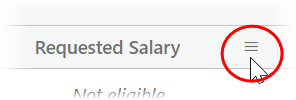
- Select the Filter icon.
-
Compensation Planning displays the Filter by... dialog:
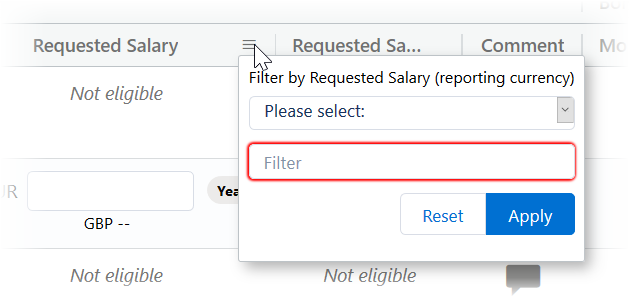
-
Select the Please select field to display your options:
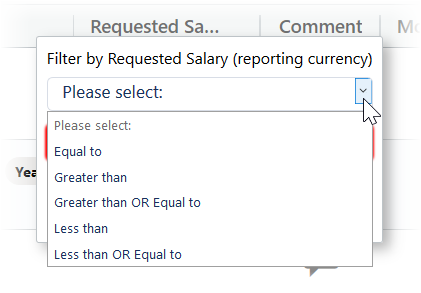
-
Choose the type of filter you want to apply:
- Equal to
- Greater than
- Greater than OR Equal to
- Less than
- Less than OR Equal to
- In the Filter field enter the value you want to use.
- Select:
- Apply to filter the column.
- Reset to clear the dialog so you choose a different filter type or enter a new value for the filter.