Configure the login error message
You can customize the default message displayed to users when user registration fails by editing the Registration exceptions custom metadata item. This error is displayed when the portal has reached its limit of available licenses.
-
Go to Setup > Custom Code > Custom Metadata Types.
-
Find the Candidate Portal Exceptions metadata item, and select Manage Records.
-
Select Edit beside Registration exceptions.
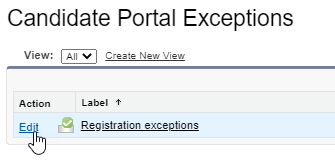
-
Edit the user-facing message in the User friendly error text field.
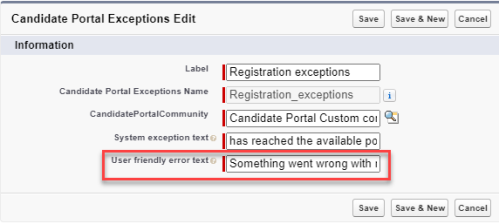
-
Select Save.
To ensure the message is displayed for users when users login using an authentication provider, ensure that the Custom Error URL is populated in the Auth Provider page. This field should be populated with the Digital Experience site base URL (see Create a Digital Experience site) followed by /social-login-error. For example:
https://customer-site.cs121.force.com/s/social-login-error