Configure login and registration page options
Ensure the profile to be used for candidate login includes access to the required Apex Class:
- Go to Setup > Users > Profiles.
- In the list of User Profiles select the Name of the Customer Community Plus Login User profile.
- On the Profile Detail page select the link for the Enabled Apex Class Access section.
-
In the Enabled Apex Class Access section check the SgPpl.CandidatePortalUserHelper class is listed.
If it is not listed:
- Select Edit.
- In the list of Available Apex Classes find the SgPpl.CandidatePortalUserHelper class and select Add to move it to the list of Enabled Apex Classes.
- Select Save.
Now set up the options for your Digital Experiences site:
-
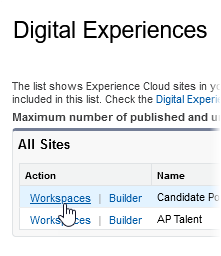
Go to Setup > Feature Settings > Digital Experiences > All Sites.
-
For the Candidate Experience Portal site select Workspaces:
-
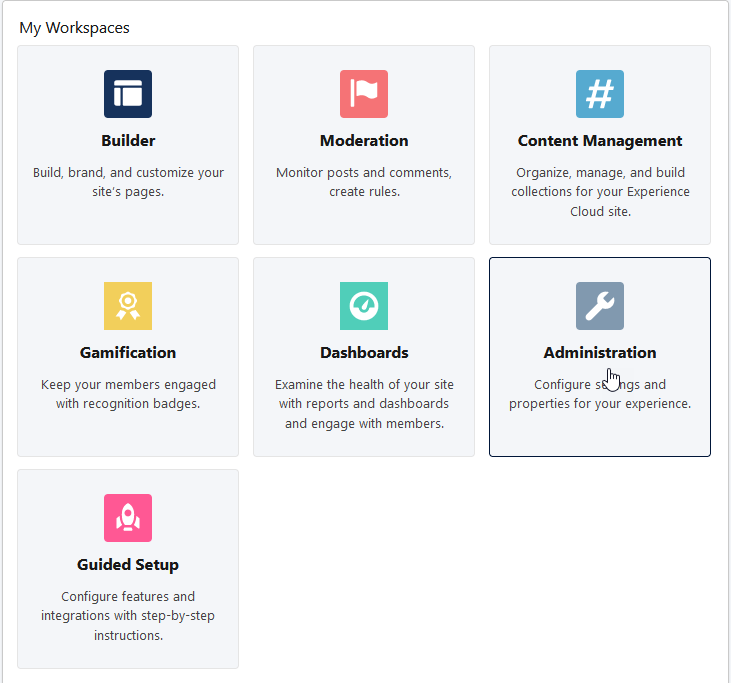
On the Workspaces page select Administration:
-
On the Administration page select Login & Registration:

Sage People displays the Login & Registration tab.
-
In the Login Page Setup section complete the fields as follows:
Field What to enter Login PageType Picklist. Select Login Discovery Page. Login Prompt Leave blank. Login Discovery Handler Select Lookup  , search for and select CandidatePortalLoginHandler
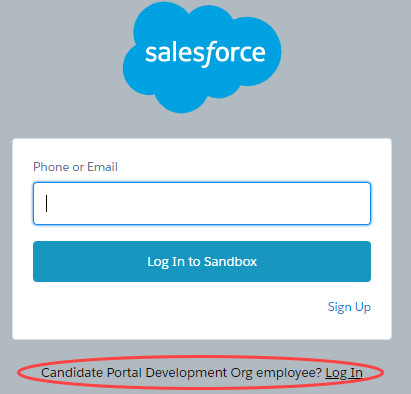
Execute Login As Select Lookup , search for and select User User.Allow employees to log in directly to an Experience Cloud Site Checkbox. If checked the Candidate Experience Portal login page does not display the employee login link:
-
In the Registration Page Configuration section complete the fields as follows:
Field What to enter Allow customers and partners to self register Checkbox. Check.. Registration Page Type Picklist. Select Configurable Self-Reg Page. User Fields Select Last Name, First Name, and Email. Configurable Self-Reg Handler Select Lookup , search for and select CandidatePortalSelfRegistration.Execute Registration As Select Lookup , search for and select User User.Assign users to a profile and account Profile: select Customer Community Plus Login User Account: leave blank.
-
Select Save.