Plans are defined through the HR Manager portal, then made available to Planners through WX.
- Select the Compensation Planning tab.
-
Select New.
Sage People displays the Compensation Plan setup page:
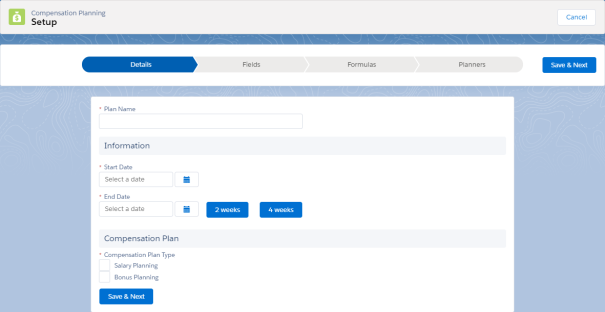
- Complete the Plan Name as follows:
Field What to enter Plan Name The name of the Plan. -
Complete the fields in the Information section as follows:
-
Field What to enter Start Date The date when the Plan starts. End Date Offset A default two or four week period when the Planner must complete the Plan. If you select an offset, End Date is automatically populated. End Date A date in the future and after Start Date. Compensation Plan Compensation Plan Type The type of Plan. Select:
- Salary Planning to create a plan for salaries
- Bonus Planning to create a plan for bonus awards
- Both checkboxes to create a combined salary and bonus plan.
Additional fields appear depending on your selection.
-
Select the Compensation Plan Type as follows:
Field What to enter Compensation Plan Type The type of Plan. Select:
- Salary Planning to create a plan for salaries
- Bonus Planning to create a plan for bonus awards
- Both checkboxes to create a combined salary and bonus plan.
Additional fields appear depending on your selection.
-
Complete the fields in the Salary Planning section as follows. These fields are displayed when Compensation Plan Type is Salary Planning:
Field
What to enter Effective Date The default date when awards in the Plan come into effect. To enable Planners to change the Effective Date for individual Team Members, select the Allow Planners to edit effective date in Planning Worksheet checkbox.
Allow Planners to edit effective date in Planning Worksheet Checkbox. Select if you want managers who complete Salary Plans to be able to change the default Salary Effective Date for individual Team Members.
Salary Reason Picklist. Select the picklist and choose the reason to apply as a default to Team Members in the Plan. The picklist includes all active values held in the Change Reason field on the Salary object.
To display the default Salary Reason in the Plan and to enable Planners to change the Salary Reason for individual Team Members, select the Allow Planners to edit the salary change reason in Planning Worksheet checkbox.
If Salary Reason is left blank, no default Salary Reason is displayed in the Plan. If Planners leave the field blank in the Plan, Salary Records default to display the content of the Custom Label Change_Reason_Compensation_Planning. To enable Planners to select a Reason when no default is set, you must select the Allow Planners to edit the salary change reason in Planning Worksheet checkbox.
Allow Planners to edit the salary change reason in Planning Worksheet Checkbox. Select:
- If you have set a default reason and you want Planners to view and change the default Salary Reason for individual Team Members.
- If you have not set a default reason and you want Planners to select a Salary Reason for each Team Member.
-
Complete fields in the Bonus Planning section. These fields are displayed when the Compensation Plan Type is Bonus Planning:
Field
What to enter Effective Date The date when awards in the Plan come into effect.
Allow Planners to edit effective date in Planning Worksheet Select if you want to enable managers who complete Bonus Plans to change the default Bonus Effective Date.
Bonus Reason Select the reason to apply to bonus payments made as a result of the Bonus Plan.
The reasons available are defined in the Reason picklist on the Bonus object.
-
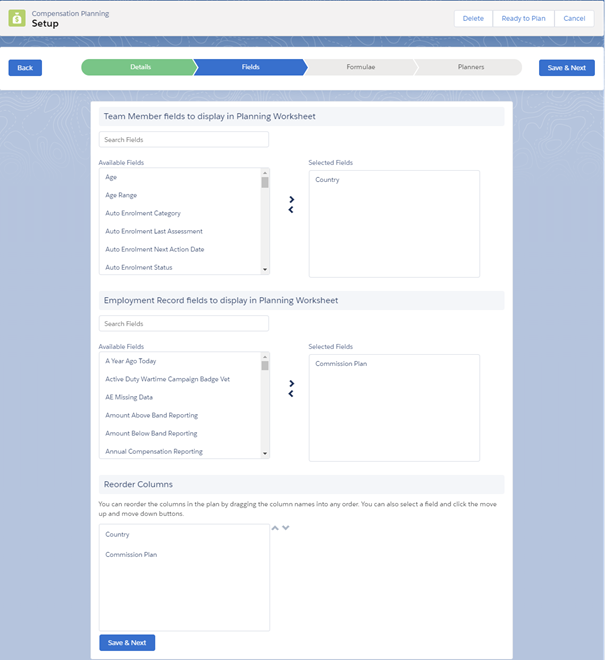
Select Save & Next to display the Fields tab:
-
Add fields on the Select Fields page to provide Planners with more information. If the default fields are sufficient you do not need to add any more.
Fields available to add to a Plan are selected from the Team Member and Employment Record objects to provide information commonly used when planning compensation awards - not all fields in those objects are listed for selection.
- Use Search Fields in each section to find fields you want to add to the Plan.
- Select a field in Available Fields and use the right arrow to add it to Selected Fields.
- Select a field in Selected Fields and use the left arrow to return it to Available Fields.
- Select a field in the Reorder Columns section and use the up and down arrows to specify the order in which it is displayed in the Plan. Note
Any fields removed from the Team Member or Employment Record objects while you were building the Plan are listed in a message. Move the missing fields from Selected Fields to Available Fields and select Save & Next again. The missing fields are removed from Available Fields automatically.
-
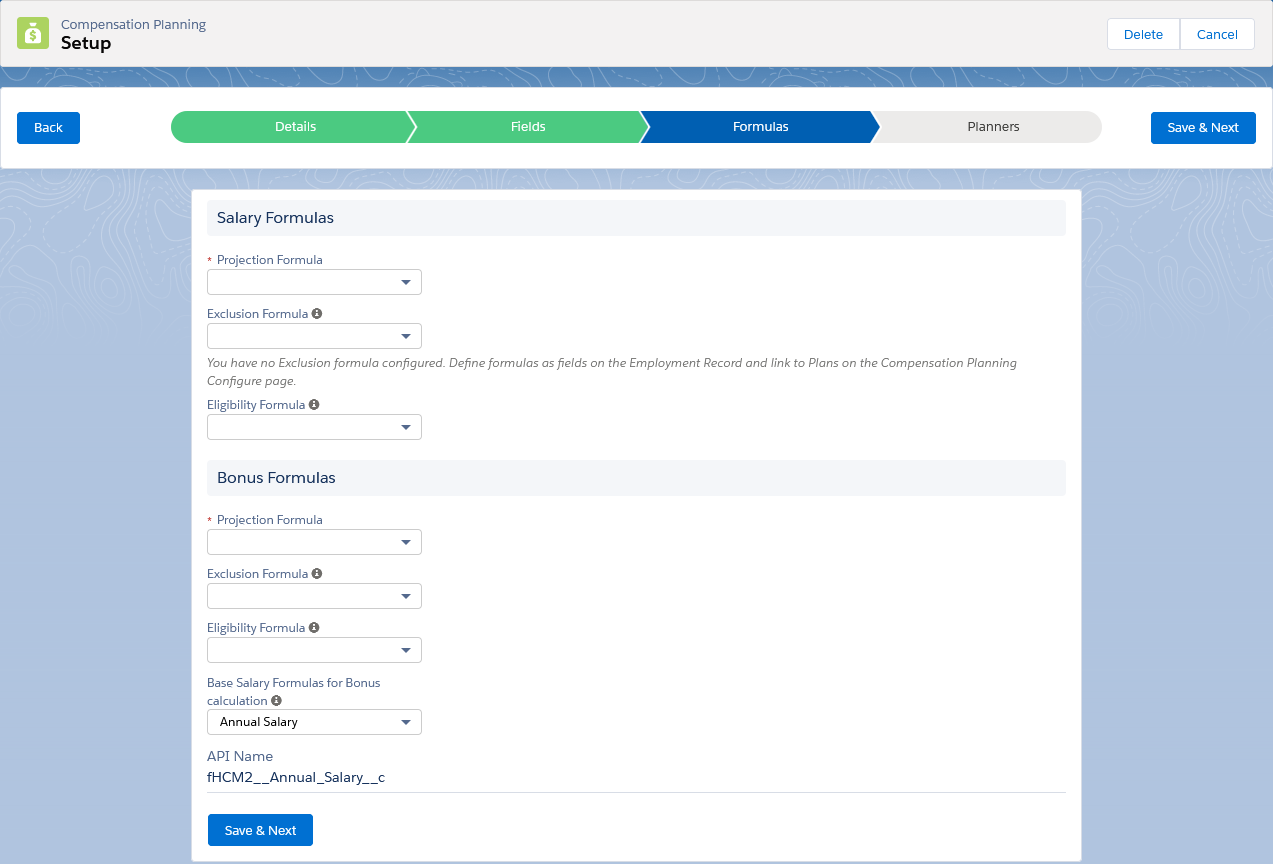
Select Save & Next to display the Formulas tab:
-
Select the formulas you want to use:
- If you selected Salary Planning as the Plan type, select from the Salary Formulas picklists.
- If you selected Bonus Planning as the Plan type, select from the Bonus Formulas picklists.
When you select a formula the page expands to display the Formula Summary and the API Name of the Formula field:
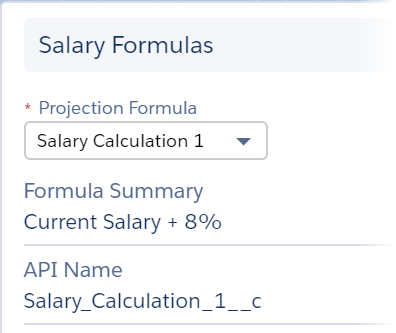
The Formula Summary contains the Help Text loaded for the Formula field.
NoteAny formulas removed from the Employment Record while you were building the Plan are listed in a message. Ensure the formula has been removed from the Compensation Planning Configure page. Then go to the Formulas tab, select an alternative formula, and select Save & Next again.
-
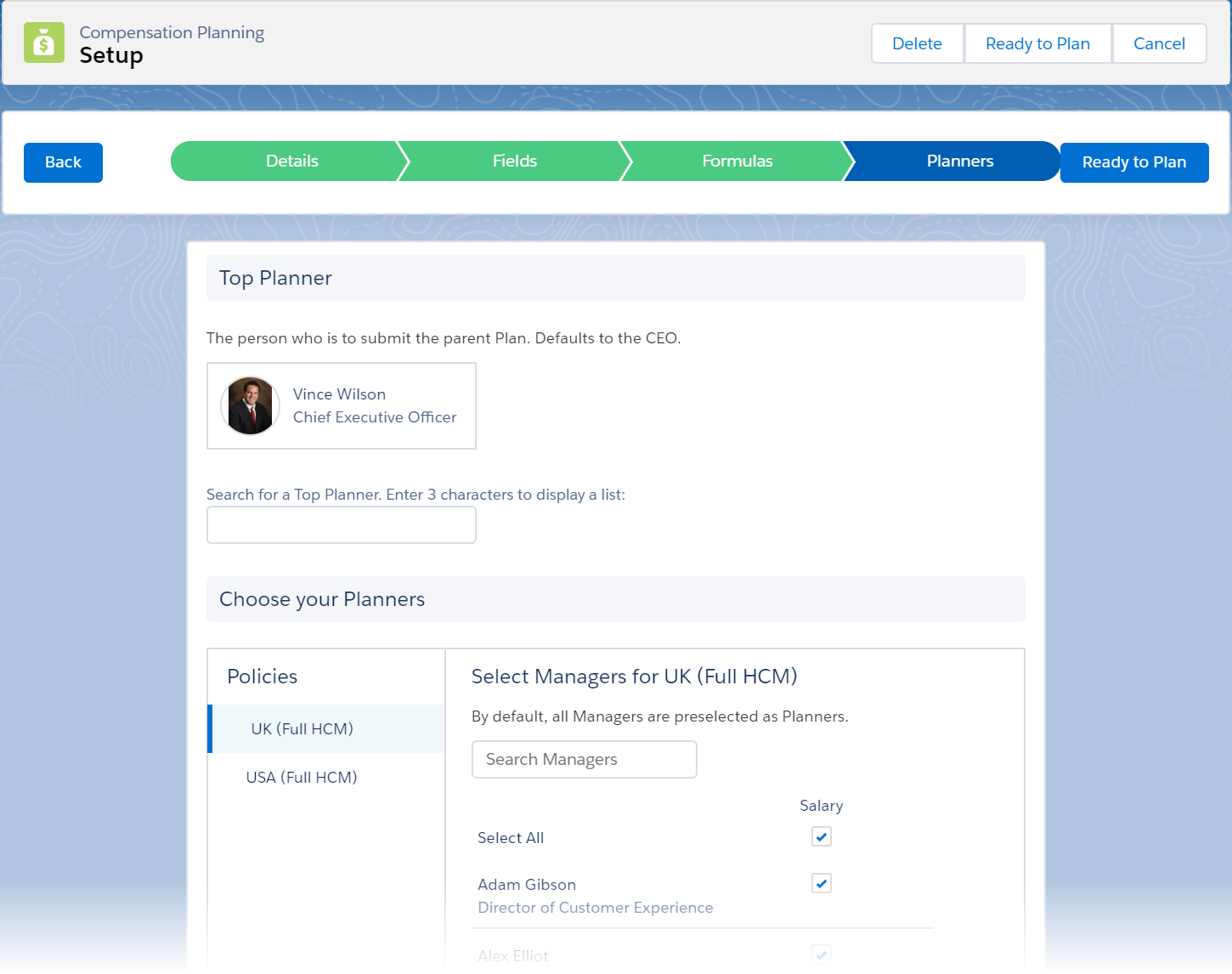
Select Save & Next to display the Planners tab:
-
Select a Top Planner for the Plan. The Top Planner defaults to the CEO of your organization and is the person who submits the main Plan.
Start typing the name of the Top Planner in the Search field to display a list of matching names, then select the person you want:
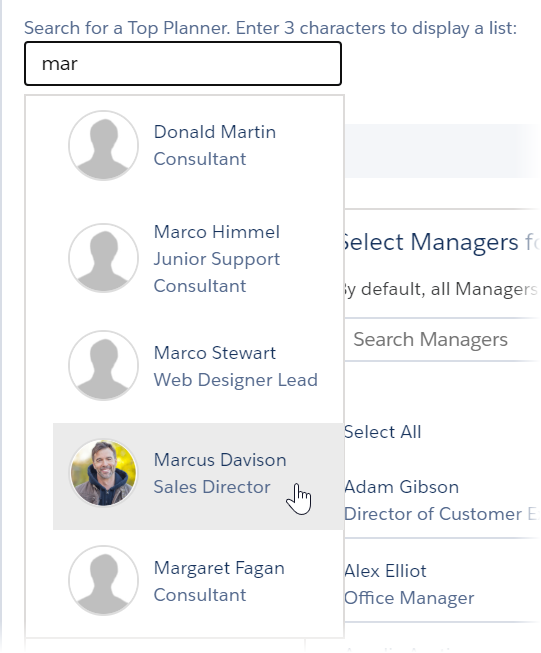
Type at least three characters to start the search.
The person you chose replaces the previous Top Planner:
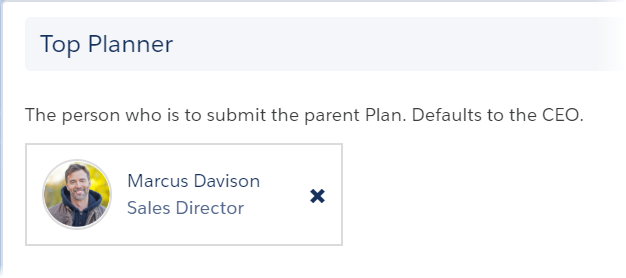
Change the Top Planner as many times as needed until you are ready to plan.
-
Select Planners for the Plan. A Planner is a Manager with one or more direct reports. Planners are displayed by Policy and the Planners tab automatically includes all Policies with Managers assigned - if a Policy has no Managers it is not included in the list of Policies.
Planners are displayed with checkboxes corresponding to the type of Plan. A Plan including Bonus and Salary displays two columns of checkboxes:
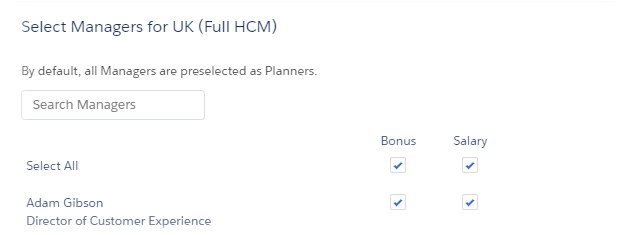
Select a policy to display all managers assigned to the Policy. By default, all Managers with Employment Status set to Active and Has Left showing False are selected as Planners.
If you want to mix Planner responsibilities - for example some Planners contributing just Salary recommendations, some contributing just bonus, some contributing both salary and bonus - create two Plans, one for salary, one for bonus.
If you are creating a Plan for just a few Planners you can deselect all Planners by unchecking the Select All checkboxes at the head of the column, then:
- Use the Search field to find a specific manager.
- Select the Bonus, Salary, or both checkboxes next to a manager to make them a Planner for the type of Plan.
If you are creating a Plan for most managers to use and want to remove just a few:
- Use the Search field to find a specific manager.
- Clear the Bonus, Salary, or both checkboxes next to a manager to remove them as a Planner for the type of Plan.
If a Planner leaves during the planning setup process, when Ready to Plan is selected Sage People displays a notification message and the Planner must be removed manually from the list of Selected Managers. If a replacement manager is not immediately appointed for the leaver's direct reports, the leaver's immediate manager is automatically assigned as the Planner for the leaver's direct reports.
- Check your Plan. You can select the tabs or Back to return to a page and make any required changes.
-
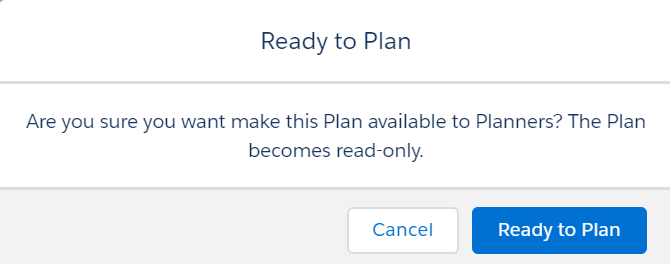
When you are happy with your Plan, select Ready to Plan
Compensation Planning asks you to confirm:
-
Select Ready to Plan.
Compensation Planning performs several checks:
Ready to Plan checks
- There is only one Team Member without a manager, with Employment Status set to Active and Has Left showing False. This is typically the CEO, the person at the top of the corporate hierarchy.
- All active Team Members with a manager have a Current Salary. The CEO can have, but does not need, a Current Salary.
- All Current Salary values have an associated currency.
- The org has only one exchange rate with Rate set to 1.00 to determine the reporting currency.
When all checks are successful, two batches are triggered:
Ready to Plan batches
- The Ready Plans batch sets the Plan status to Ready.
- The Start Plans batch runs at the time selected on the Compensation Planning Configure page, or when the Ready Plans batch finishes and the Plan Start Date is today or in the past. The Start Plans batch makes all Plans with a Start Date of today available to the Planners you selected. The Plan status changes to In Progress.
The Plan becomes read-only and you cannot edit it.
-
To display a summary of your Plan, select the Plan on the Compensation Planning Home page.